---
title: "Tutorial: How to Create a Location-Based WebAR Garden with Mattercraft and Immersal"
description: Learn how to create a location-based WebAR experience using Mattercraft and Immersal. Scan, anchor, and bring digital scenes to life with ease.
image: https://3409235.fs1.hubspotusercontent-na1.net/hubfs/3409235/MattercraftTutorial_TransformYourGardenWithAR.png
---
- [AR Examples](https://www.zappar.com/ar-examples/)
- [Webinars](https://zap.works/webinars/)
- [XR Pioneers](https://www.zappar.com/xr-pioneers/)
- [AR Resources](https://www.zappar.com/ar-resources/)
[Let's talk](https://www.zappar.com/contact/)
- [AR Examples](https://www.zappar.com/ar-examples/)
- [Webinars](https://zap.works/webinars/)
- [XR Pioneers](https://www.zappar.com/xr-pioneers/)
- [AR Resources](https://www.zappar.com/insights/ar-resources/)
[Let's talk](https://www.zappar.com/contact/)
[Back](https://www.zappar.com/insights/)
# Tutorial: How to Create a Location-Based WebAR Garden with Mattercraft and Immersal
 Abbie Peach
XR Designer at Zappar
Mar 19 2025 7 min read
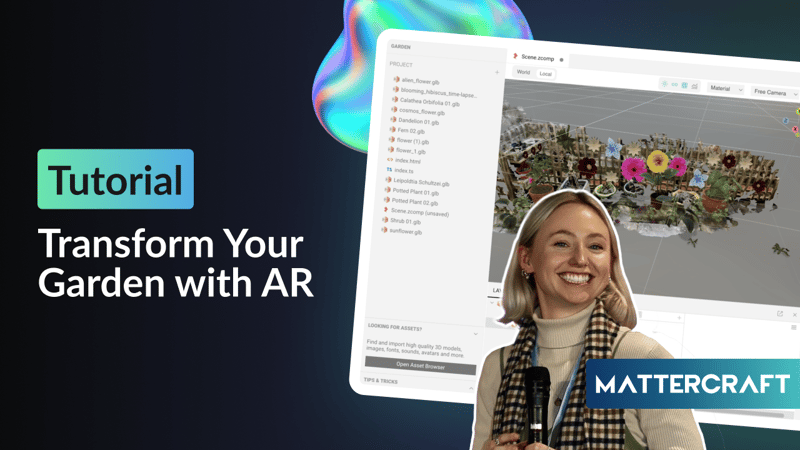
Ever wished you could bring a dull, unspiring space to life with AR? Well, now you can!
In this step-by-step tutorial, I’ll show you how to create a location-based WebAR experience right from your browser using [Mattercraft](http://zap.works/mattercraft), our next-gen 3D web tool for building AR, VR and WebXR content. We’ll also use [Immersal](https://immersal.com/webar) to scan and anchor 3D objects in real-world locations—perfect for interactive installations, visitor engagement in museums and attractions, or even city tours!
And don’t worry, you won’t need much coding experience to follow along. [Watch the full tutorial](https://youtu.be/XAHhjuegTE8) on our YouTube channel or follow along below.
Let’s dive in!
## Step 1: Set up your Mattercraft project
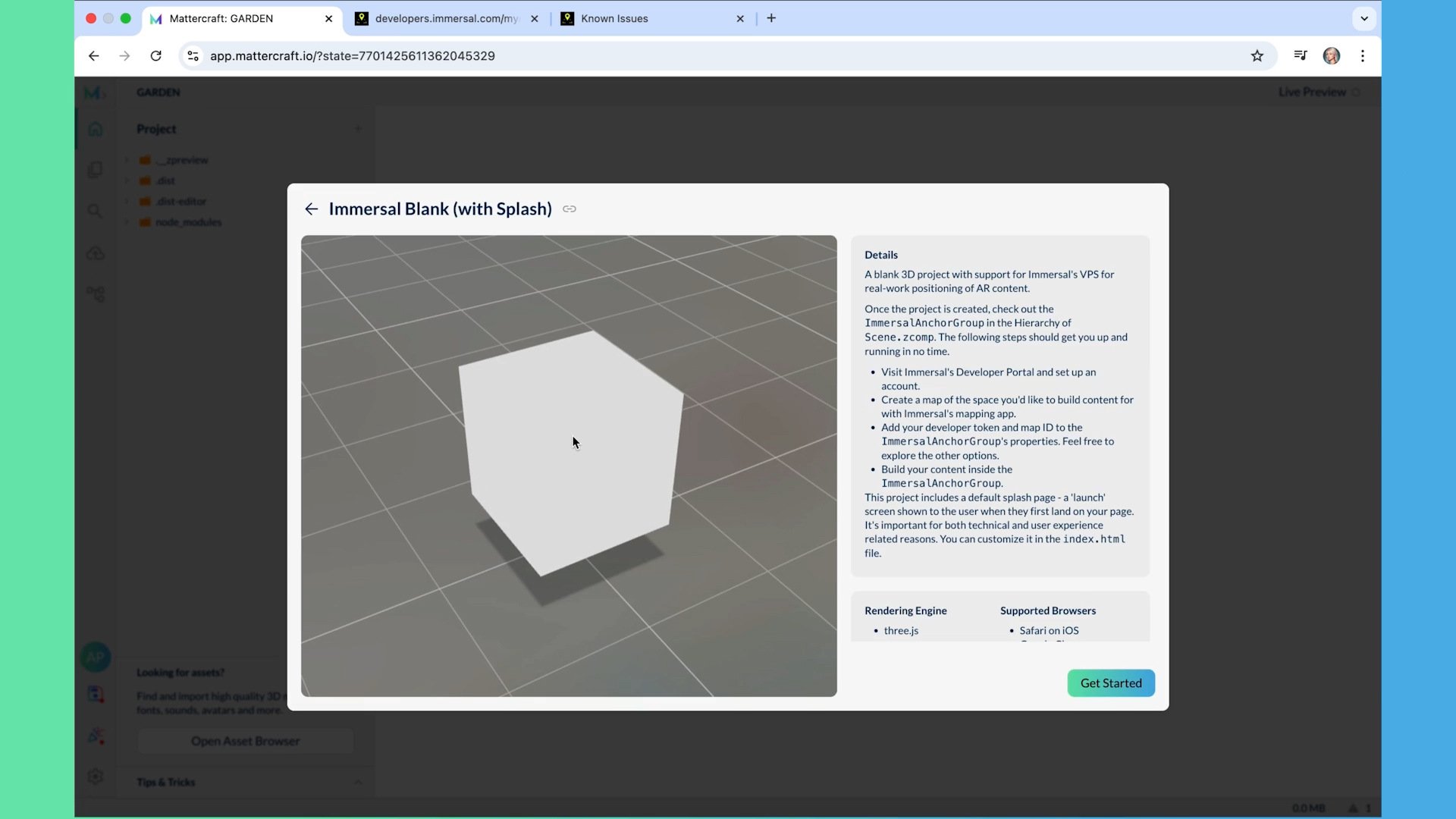
First things first, you’ll need a Zapworks account to access Mattercraft. If you haven’t already, head over to [my.zap.works/register](https://my.zap.works/register) and sign up for the free 14-day trial.
Once you're in:
1. Create a new project and give it a name (e.g., Garden).
2. Choose a template—for this tutorial, select the one with Immersal integration since it has their visual positioning system (VPS) setup pre-configured.
3. Your workspace is now ready to go
## Step 2: Scan your real-world space with Immersal
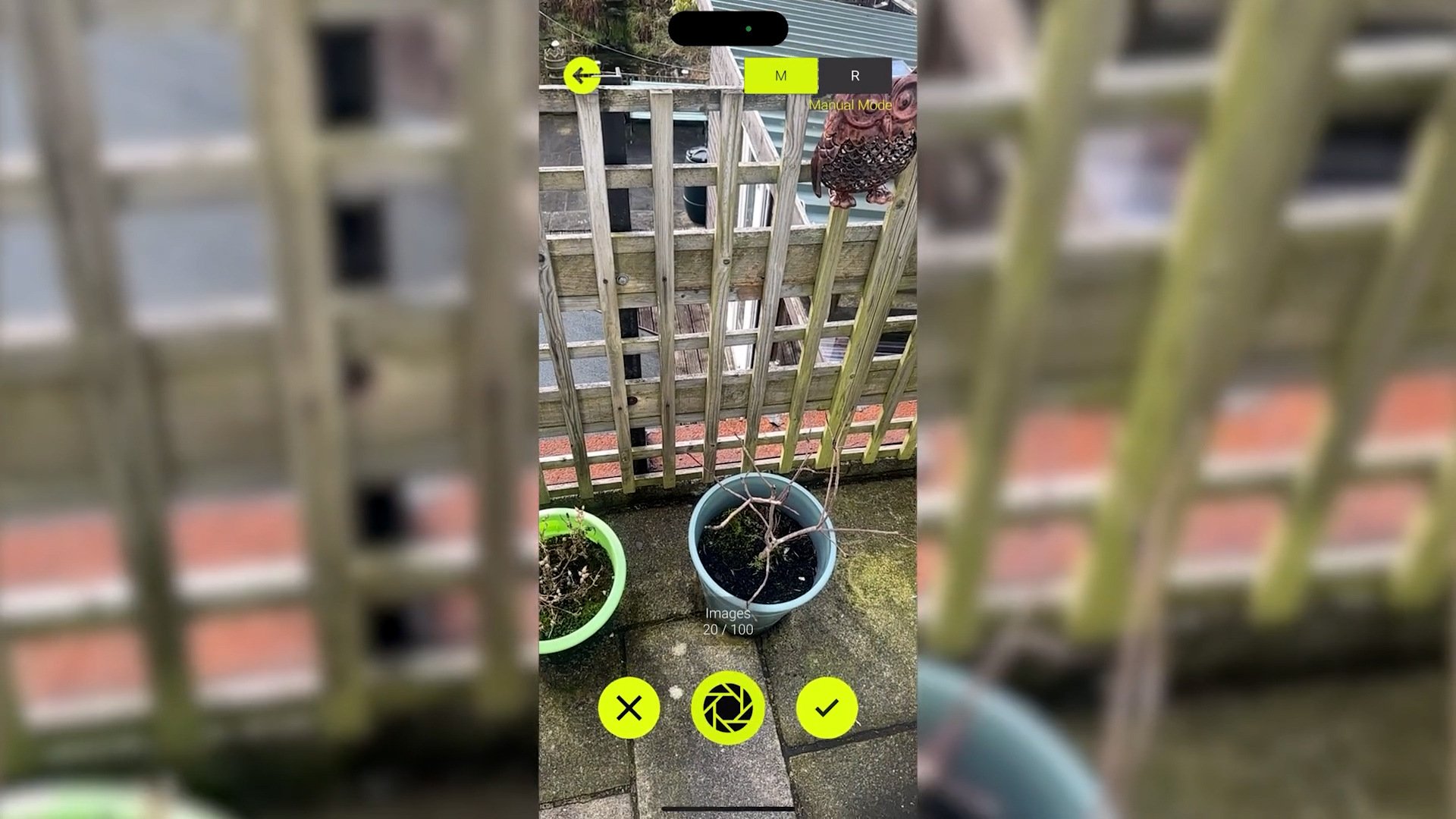
To accurately place AR objects in your environment, you’ll need to scan the area using [Immersal Mapper](https://immersal.com/app), an app that converts real-world locations into digital maps, available on [iOS](https://apps.apple.com/us/app/immersal-mapper/id1466607906) and [Android](https://play.google.com/store/apps/details?id=com.immersal.sdk.mapper).
How to scan your space:
1. Download the Immersal Mapper app on your phone and create an account.
2. Set it to manual mode (since the free version doesn’t support real-time mapping).
3. Walk around your space, taking overlapping photos of the area. The more, the better!
4. Save your map and upload it to the [Immersal Developer Portal](https://developers.immersal.com/).
5. From the Developer Portal, copy your developer token and map ID, then paste them into the Immersal Anchor settings in Mattercraft
Now, you should see a 3D representation of your space in the Mattercraft viewport —this will act as a visual map to anchor your content to.
## Step 3: Add 3D assets to your scene
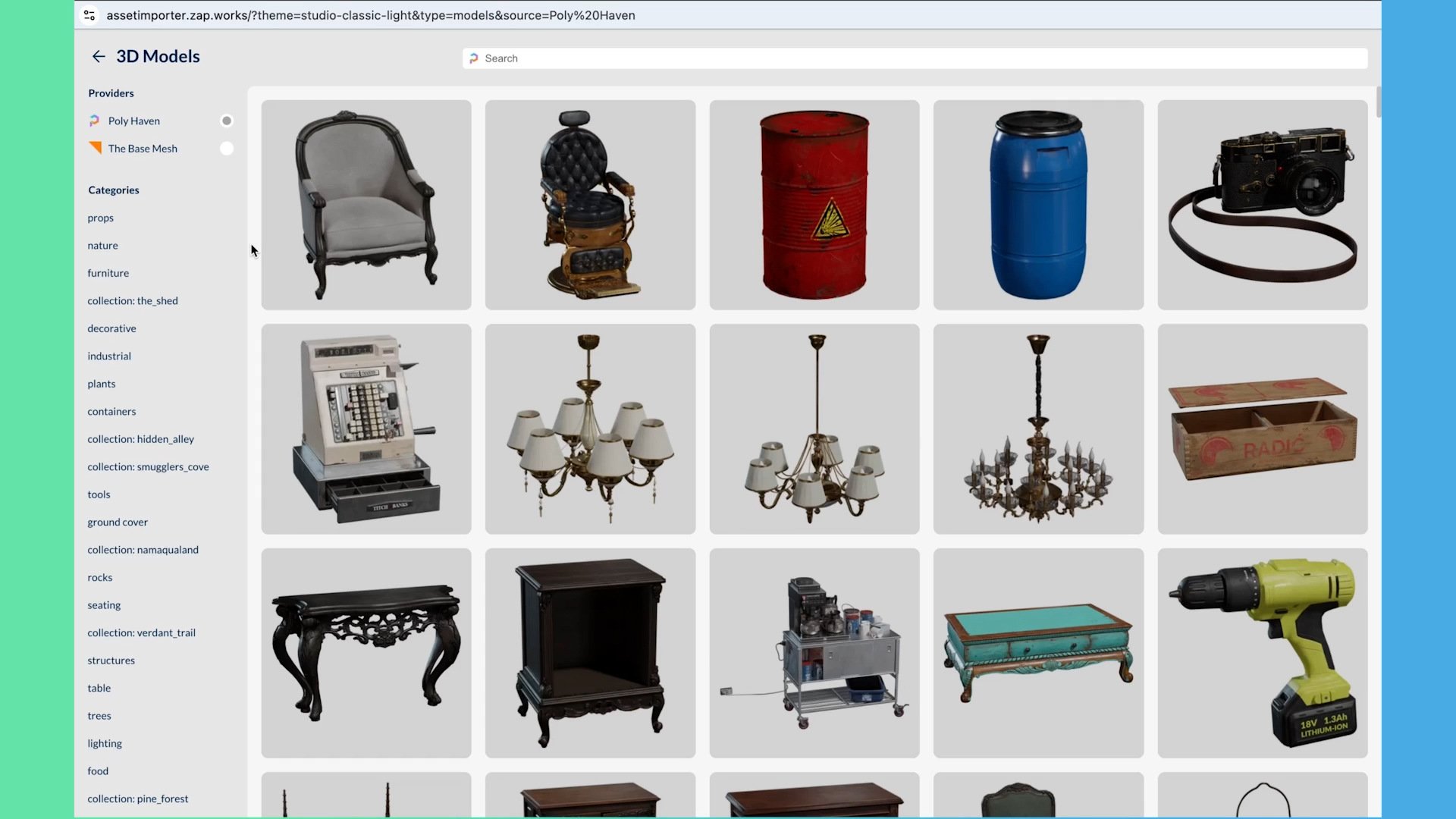
Now comes the fun part—decorating your digital garden! Mattercraft has a built-in asset library where you can add 3D objects like flowers, bushes, and trees.
To add assets:
1. Browse the Mattercraft Asset Library and click “Add to Project” to import models.
2. Adjust the position, scale, and rotation to fit your real-world layout.
3. Want more variety? Download extra 3D models from Sketchfab and import them just like before.
Take your time arranging everything so that your AR garden blends naturally with the real space!
## Step 4: Customise your splash screen
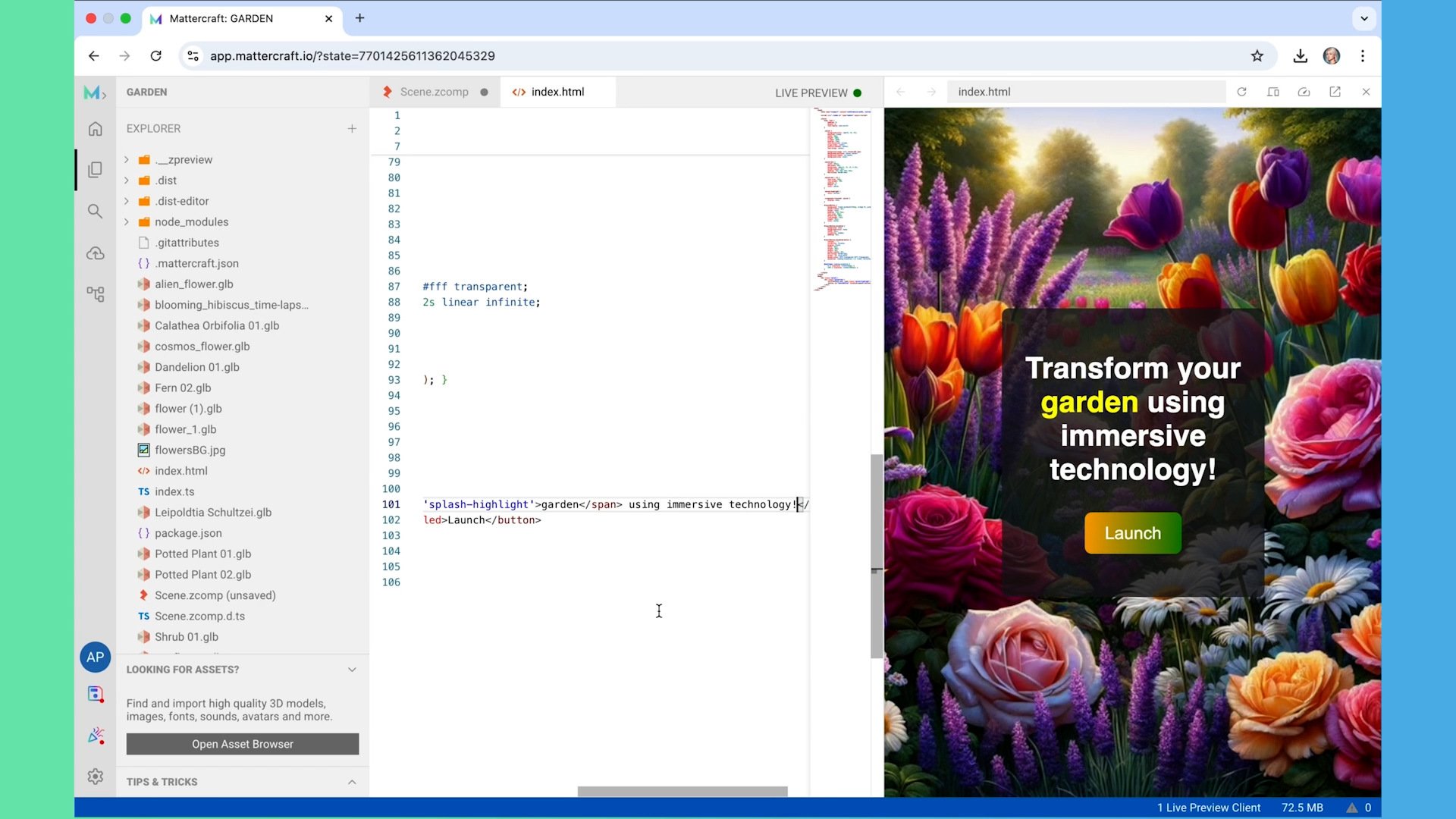
The splash screen is the first thing users see before launching your AR experience. Here’s how to personalise it to match our garden theme.
To edit the splash screen:
1. Open the index.html file in Mattercraft’s File Explorer.
2. Use the Live Preview to see updates in real time.
3. Change the background image (upload a custom image if you’d like).
4. Adjust the button colour and text style in the CSS file (use simple colour names or hex codes).
5. Update the welcome message—something like “Transform your garden using immersive technology” works well!
## Step 5: Add animations for a more dynamic experience
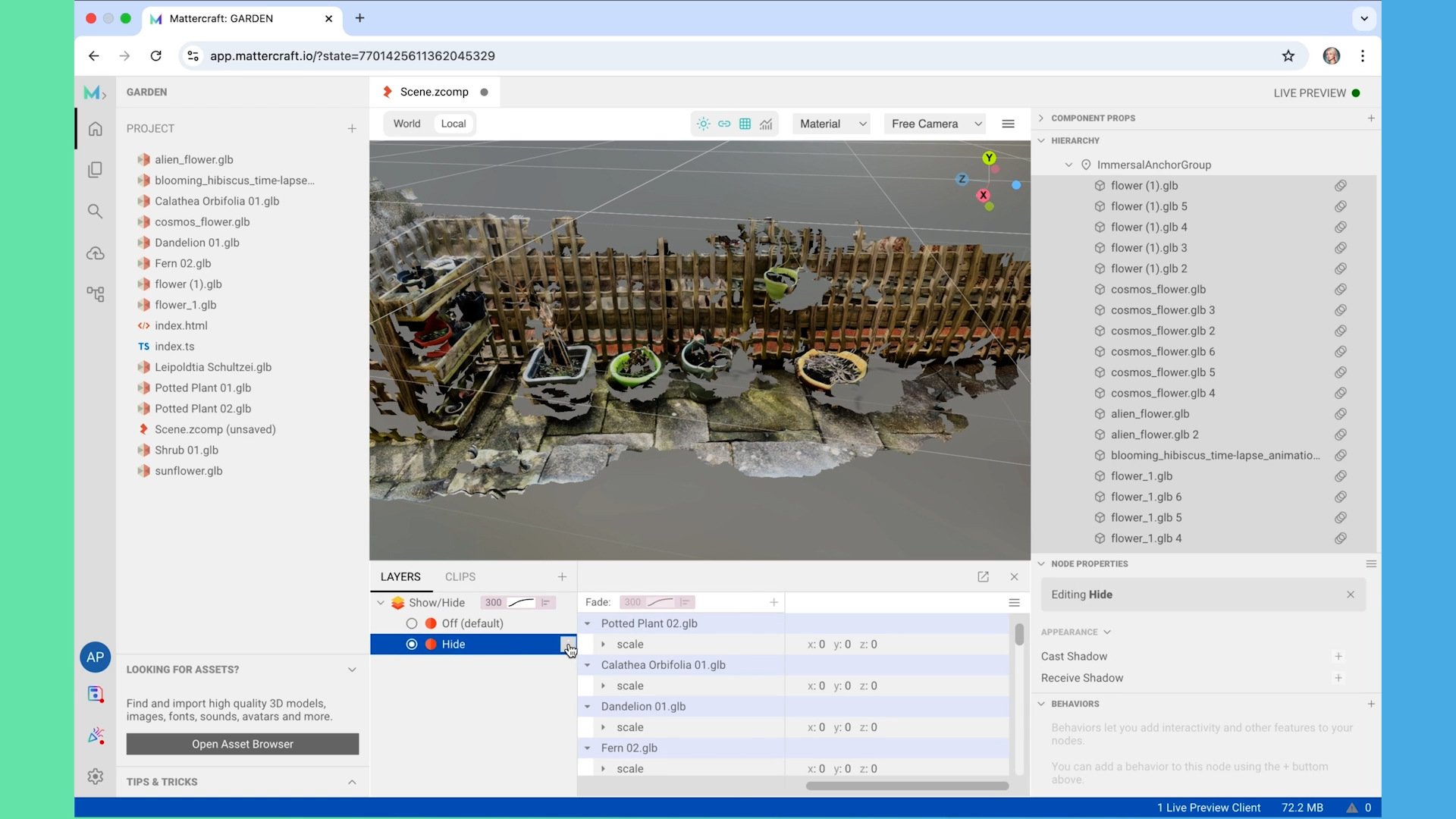
By default, the plants and flowers appear instantly when users scan the experience. Let’s make them grow dynamically instead.
Creating show/hide animations:
1. Open the Animation Timeline and create a new “Show/Hide” layer.
2. Add a Hide state and scale all 3D objects down to zero (so they’re hidden at the start).
3. Create a Show state where the objects appear again.
4. Set the default state to Hide (so objects don’t show immediately).
5. Adjust the easing graph—"ease in and out" gives a smooth animation effect.
Now, we need a way to trigger the animations when a user interacts with the experience.
## Step 6: Add interactivity with a tap-to-grow button
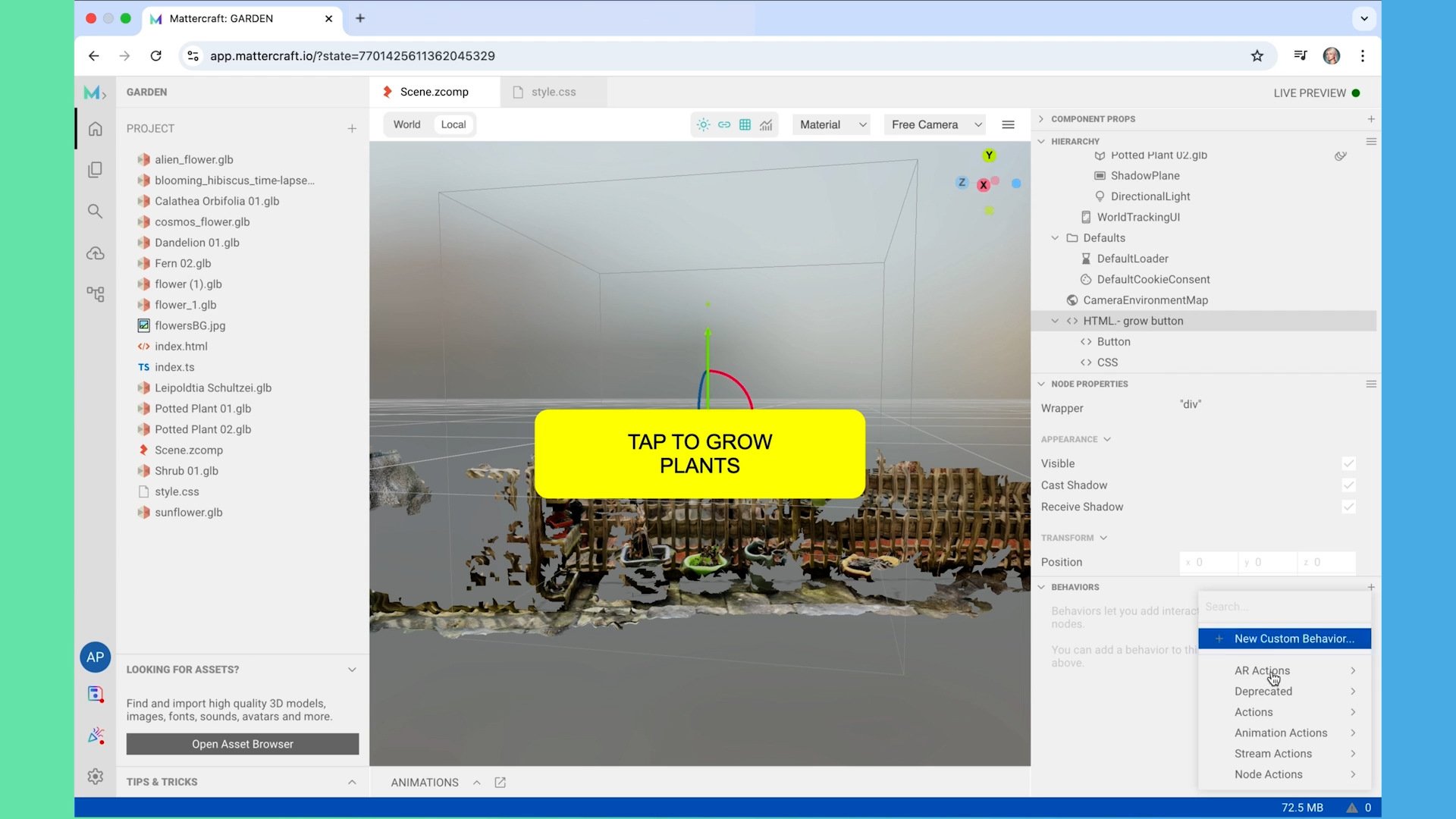
Now let’s add a button that allows users to tap and grow plants.
Creating the button:
1. In the Hierarchy menu, add a new HTML element and name it.
2. Inside it, create a button with text like “Tap to Grow Plants”.
3. Style the button in the style.css file—adjust the background colour, font size, and padding for a clean look.
Making the button work:
1\. Add an animation action that plays the Show/Hide animation when the button is clicked.
2\. Set the button to disappear after tapping so users can enjoy the full garden view.
Now when users tap the button, the flowers will grow before their eyes! 🌱
## Step 7: Test and publish your AR experience
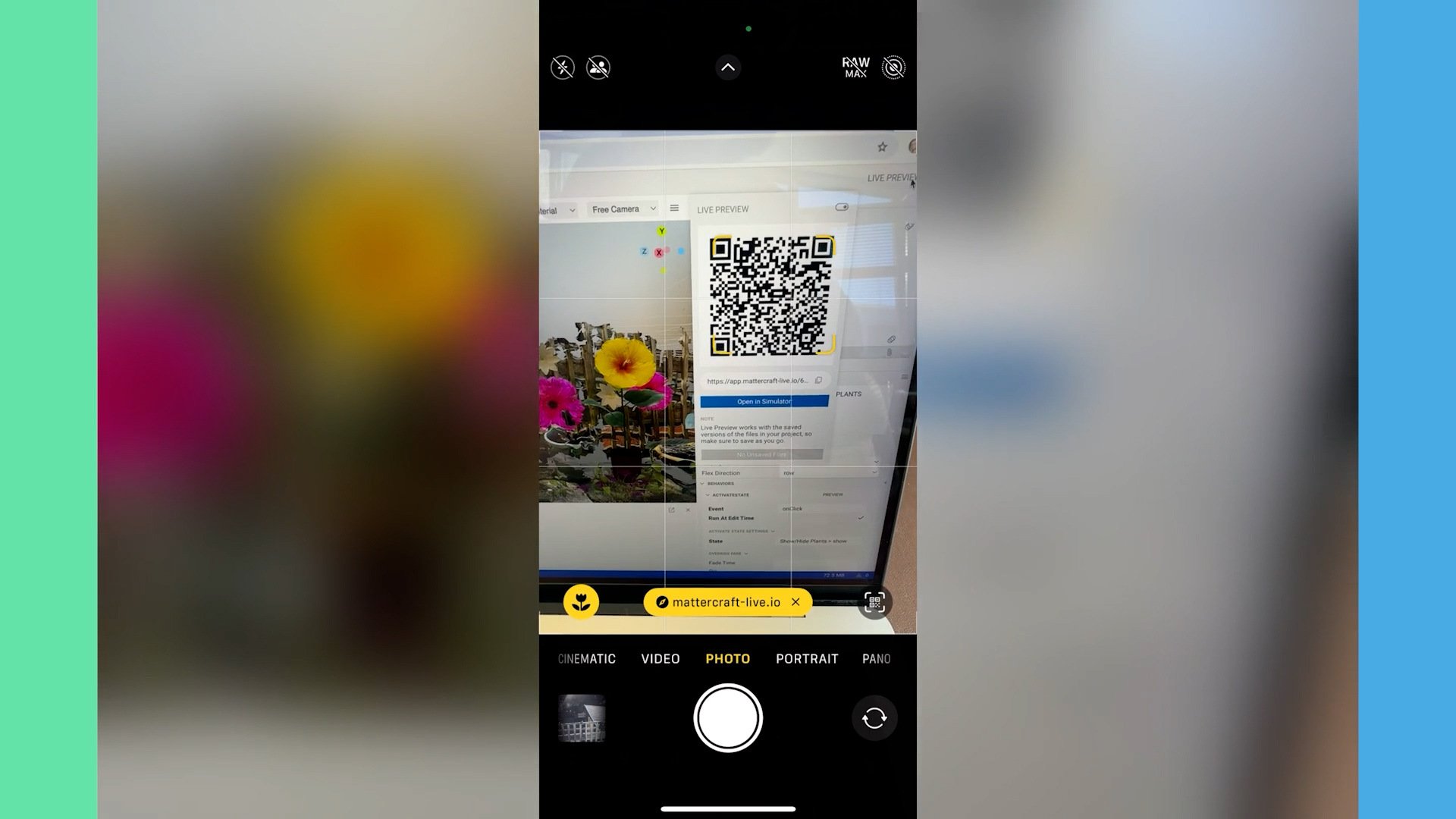
Almost there! Let’s test everything before sharing it with the world.
Testing your project:
1. Click Live Preview in the top-right corner of Mattercraft.
2. Scan the QR code with your phone to load the experience.
3. Walk around and test the placement, interactions, and animations.
If something looks off, you can tweak your scene and the live preview will update instantly—no need to reload the page.
Publishing your AR garden:
1\. Click Publish in the left-hand menu.
2\. Enter a version number (e.g., 1.0).
3\. Mattercraft will generate a shareable link and QR code—use this to let others try your AR garden instantly in the web browser.
## Final thoughts
And that’s it! You’ve successfully built a location-based WebAR experience using Mattercraft and Immersal.
We covered:
✅ Scanning a real-world space with Immersal
✅ Placing 3D models in the environment
✅ Adding animations and interactions
✅ Customising the splash screen
✅ Publishing and sharing your experience
Join the Zappar [XR Pioneers Discord](https://discord.gg/Uy5cFmK2) to share your AR projects, get inspiration, and connect with other creators.
Happy building, we can’t wait to see what you create!
 Abbie Peach
XR Designer at Zappar
- Company
- [About](https://www.zappar.com/about/)
- [Zappar](https://www.zappar.com/)
- [Zapworks](https://zap.works/?__hstc=214098056.48a03223cfd0eac9e0f99b6be21fa25e.1707412219619.1707490953493.1707493519375.4&__hssc=214098056.23.1707747317153&__hsfp=501235727)
- [Zapbox](https://www.zappar.com/zapbox/)
- [Zapvision](https://www.zappar.com/zapvision/)
- [Careers](https://www.zappar.com/jobs/)
- [Testimonials](https://www.zappar.com/testimonials/)
- Tech
- [Augmented Reality](https://www.zappar.com/augmented-reality/)
- [Mixed Reality](https://www.zappar.com/mixed-reality/)
- [Accessible QR code](https://www.zappar.com/zapvision/accessible-qr-codes/)
- AR for
- [Packaging](https://www.zappar.com/solutions/packaging/)
- [Retail](https://www.zappar.com/solutions/retail/)
- [Learning & Development](https://www.zappar.com/solutions/learning-and-development/)
- [Events](https://www.zappar.com/solutions/events/)
- [Marketing](https://www.zappar.com/solutions/marketing/)
- [Events, Tours and Attractions](https://www.zappar.com/solutions/events/)
- Resources
- [Blog](https://www.zappar.com/blog/)
- [Case Studies](https://www.zappar.com/case-studies/)
- [Archive](https://www.zappar.com/blog/?page=2)
- [AR Pioneers 2021](https://www.zappar.com/ar-pioneers/2021)
- [AR Pioneers 2022](https://www.zappar.com/ar-pioneers/2022)
- [XR Pioneers 2023](https://www.zappar.com/xr-pioneers)
- [Webinars](https://zap.works/webinars/?__hstc=214098056.48a03223cfd0eac9e0f99b6be21fa25e.1707412219619.1707490953493.1707493519375.4&__hssc=214098056.23.1707747317153&__hsfp=501235727)
- [Ebooks](https://www.zappar.com/ebooks/)
- Legal
- [T&C's](https://www.zappar.com/terms/)
- [Privacy Policy](https://www.zappar.com/privacy/)
- [Cookies](https://www.zappar.com/cookies/)
- [Zapvision T&C's](https://www.zappar.com/zapvision-terms/)
- [Zapvision CMS T&C's](https://www.zappar.com/zapvision-cms-terms/)
### Company
- [About](https://www.zappar.com/about/)
- [Zappar](https://www.zappar.com/)
- [Zapworks](https://zap.works/?__hstc=214098056.48a03223cfd0eac9e0f99b6be21fa25e.1707412219619.1707490953493.1707493519375.4&__hssc=214098056.23.1707747317153&__hsfp=501235727)
- [Zapbox](https://www.zappar.com/zapbox/)
- [Zapvision](https://www.zappar.com/zapvision/)
- [Careers](https://www.zappar.com/jobs/)
- [Testimonials](https://www.zappar.com/testimonials/)
### Tech
- [Augmented Reality](https://www.zappar.com/augmented-reality/)
- [Mixed Reality](https://www.zappar.com/mixed-reality/)
- [Accessible QR code](https://www.zappar.com/zapvision/accessible-qr-codes/)
### AR for
- [Packaging](https://www.zappar.com/solutions/packaging/)
- [Retail](https://www.zappar.com/solutions/retail/)
- [Learning & Development](https://www.zappar.com/solutions/learning-and-development/)
- [Events](https://www.zappar.com/solutions/events/)
- [Marketing](https://www.zappar.com/solutions/marketing/)
- [Events, Tours and Attractions](https://www.zappar.com/solutions/events/)
### Resources
- [Blog](https://www.zappar.com/blog/)
- [Case Studies](https://www.zappar.com/case-studies/)
- [Archive](https://www.zappar.com/blog/?page=2)
- [AR Pioneers 2021](https://www.zappar.com/ar-pioneers/2021)
- [AR Pioneers 2022](https://www.zappar.com/ar-pioneers/2022)
- [XR Pioneers 2023](https://www.zappar.com/xr-pioneers)
- [Webinars](https://zap.works/webinars/?__hstc=214098056.48a03223cfd0eac9e0f99b6be21fa25e.1707412219619.1707490953493.1707493519375.4&__hssc=214098056.23.1707747317153&__hsfp=501235727)
- [Ebooks](https://www.zappar.com/ebooks/)
### Legal
- [T&C's](https://www.zappar.com/terms/)
- [Privacy Policy](https://www.zappar.com/privacy/)
- [Cookies](https://www.zappar.com/cookies/)
- [Zapvision T&C's](https://www.zappar.com/zapvision-terms/)
- [Zapvision CMS T&C's](https://www.zappar.com/zapvision-cms-terms/)
© 2024 Zappar Ltd.
-
-
-
-
```json
{
"@context" : "https://schema.org",
"@type" : "BlogPosting",
"author" : {
"@type" : "Person",
"name" : "Abbie Peach",
"url" : "http://www.zappar.com/insights/author/abbie-peach"
},
"dateModified" : "2025-03-19T10:24:38.933Z",
"datePublished" : "2025-03-19T10:24:38.000Z",
"headline" : "Tutorial: How to Create a Location-Based WebAR Garden with Mattercraft and Immersal",
"image" : [ "https://3409235.fs1.hubspotusercontent-na1.net/hubfs/3409235/MattercraftTutorial_TransformYourGardenWithAR.png" ],
"mainEntityOfPage" : {
"@id" : "http://www.zappar.com/insights/tutorial-how-to-create-a-location-based-webar-garden-with-mattercraft-and-immersal",
"@type" : "WebPage"
},
"publisher" : {
"@type" : "Organization",
"logo" : {
"@type" : "ImageObject",
"url" : "https://3409235.fs1.hubspotusercontent-na1.net/hubfs/3409235/zappar-logo.png"
},
"name" : "Zappar"
}
}
```